
Free Newsletter Templates
Explore our collection of professionally designed newsletter templates in Google Docs and Word. You can download or get a copy of our designs for free. Choose from simple, modern, and elegant blanks, customize them to your liking, and use them to amaze your readers. We offer corporate, real estate, church, school, and other examples.
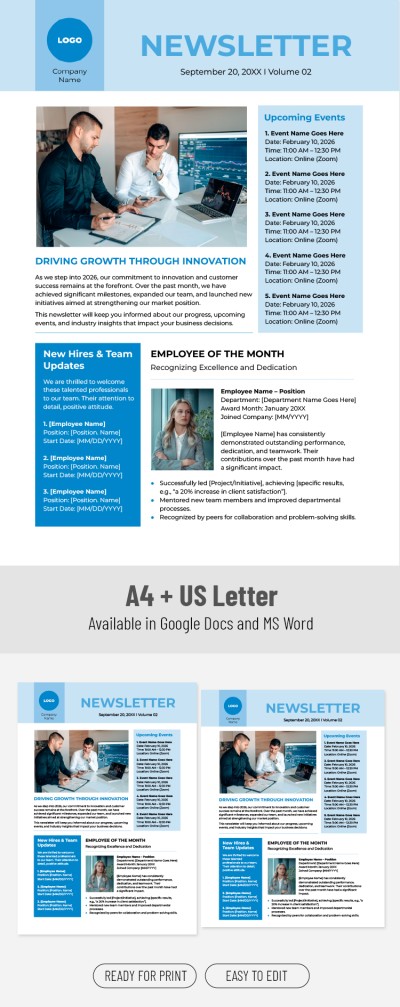
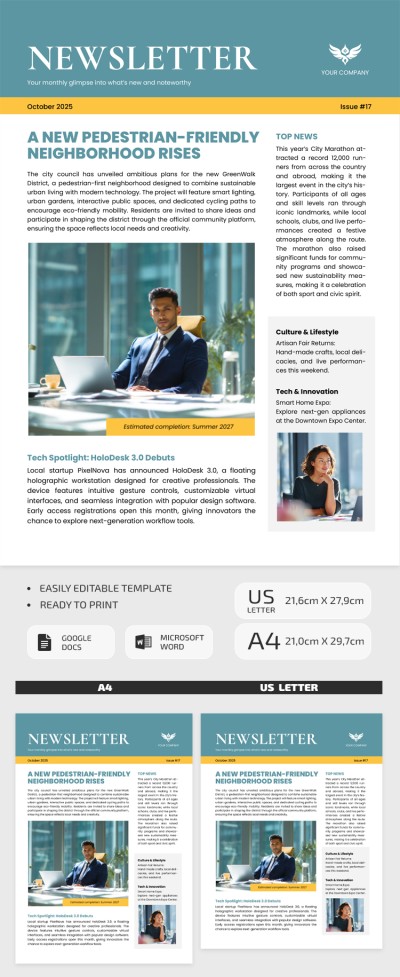
Email Weekly Newsletter Template
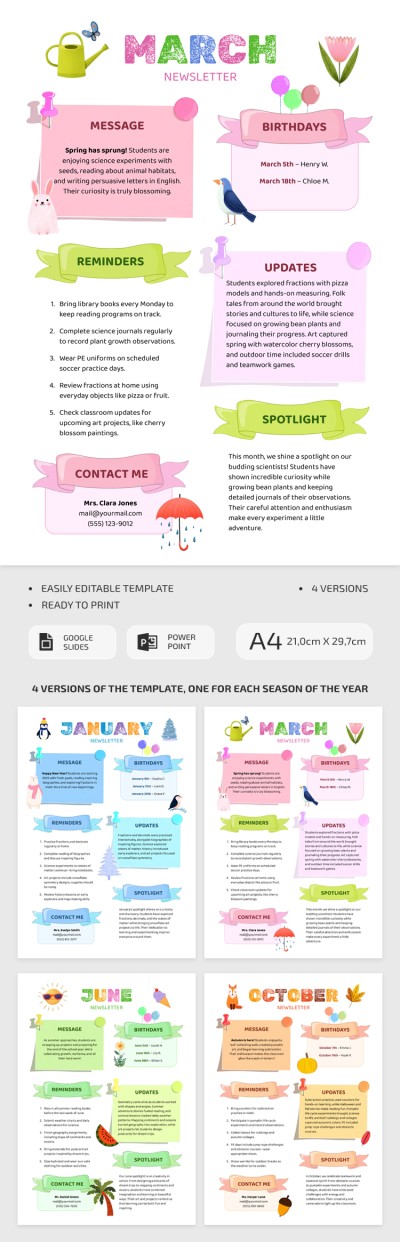
Monthly Newsletter Template for Classrooms
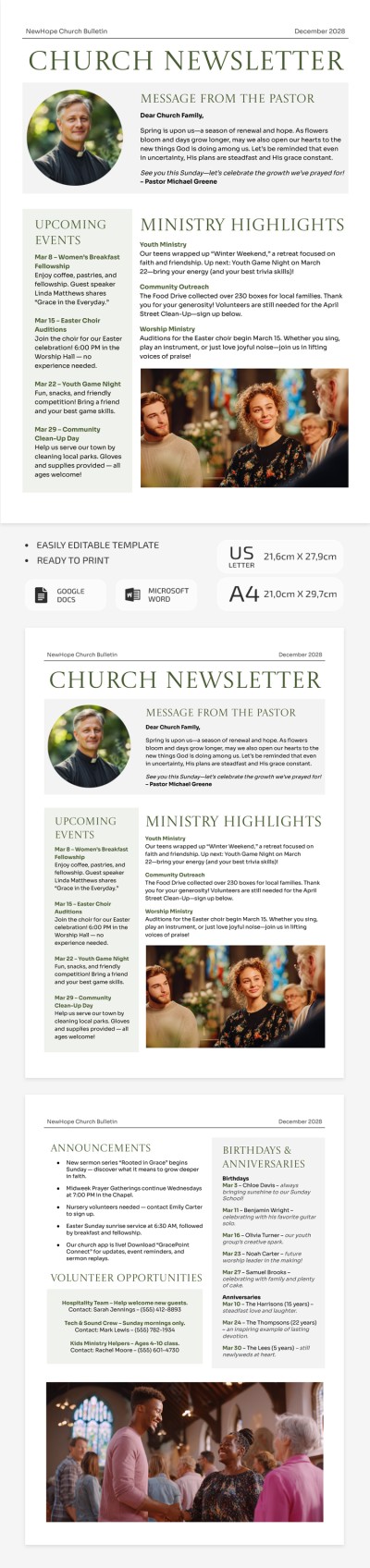
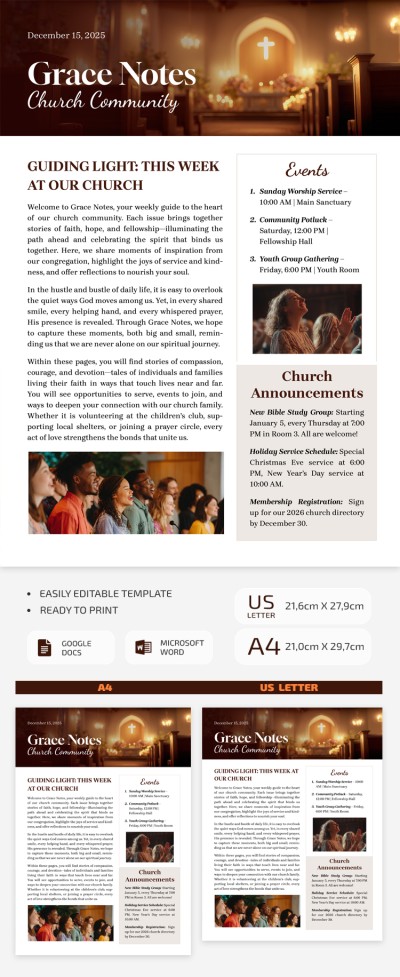
Church Weekly Newsletter Template
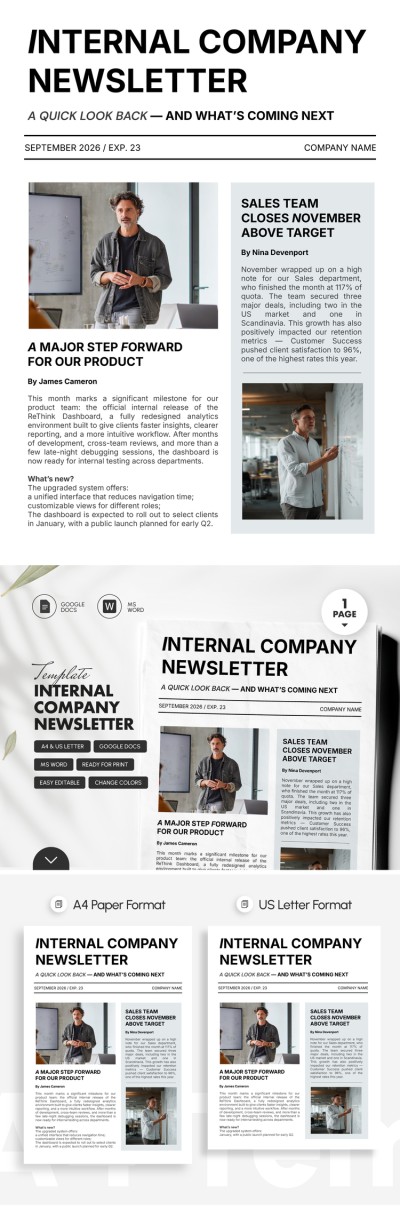
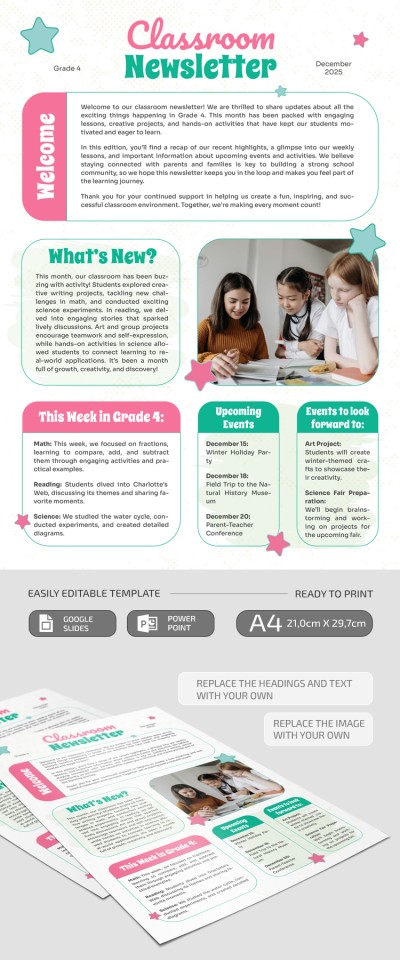
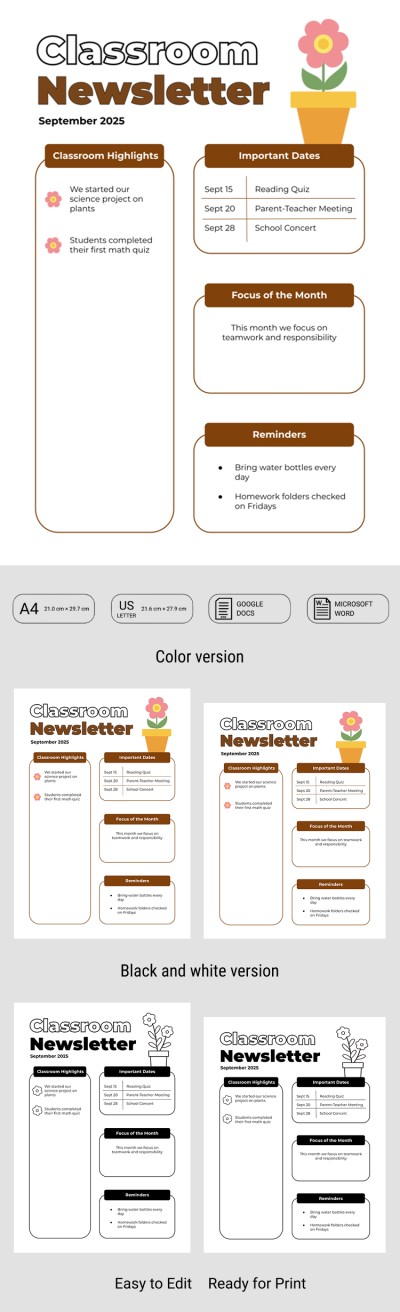
Classroom Newsletter

Editable Classroom Newsletter
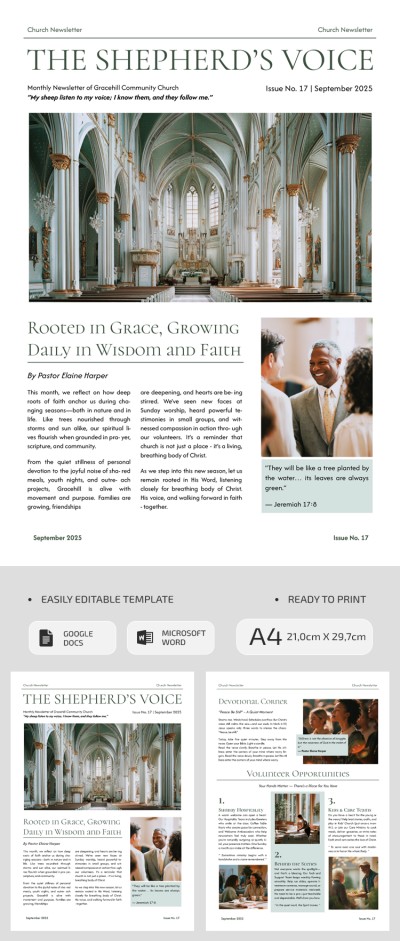
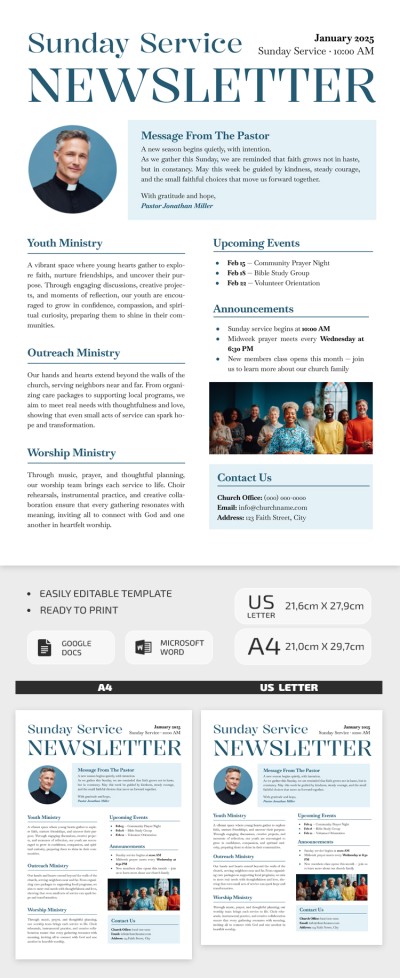
Church Newsletter Template
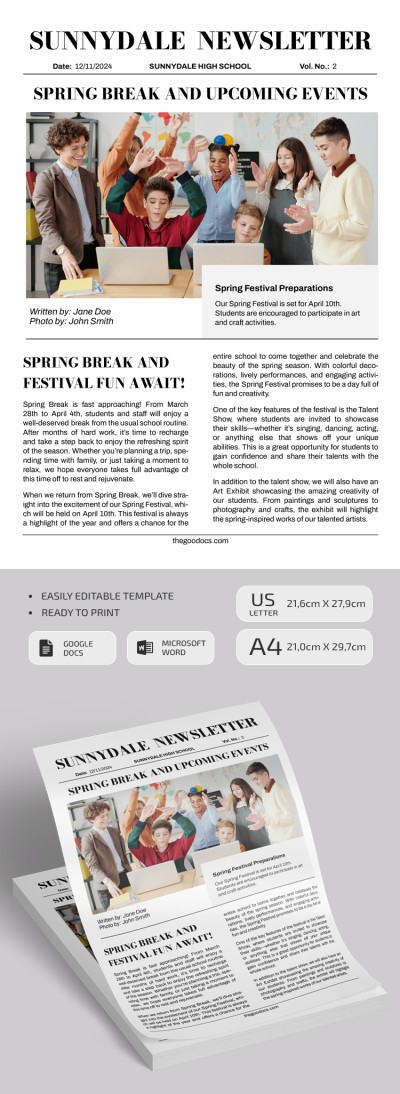
Simple School Newsletter

Printable Monthly Newsletter Template for Schools
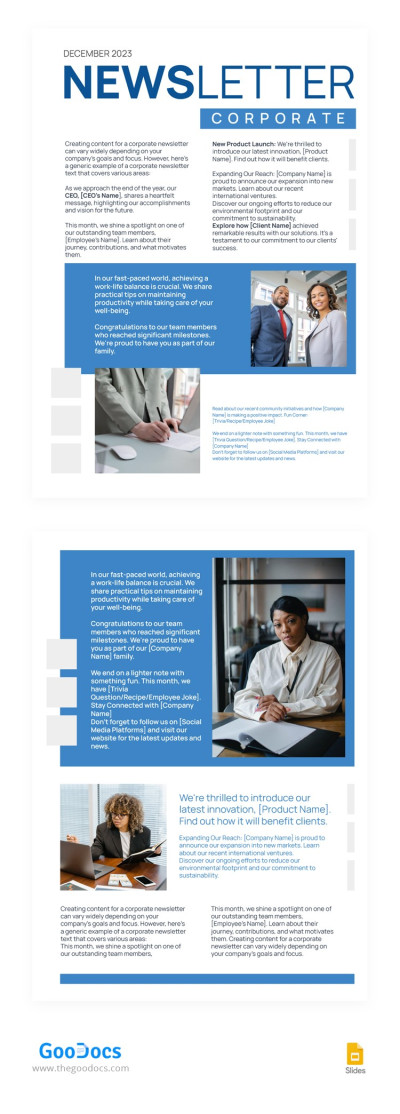
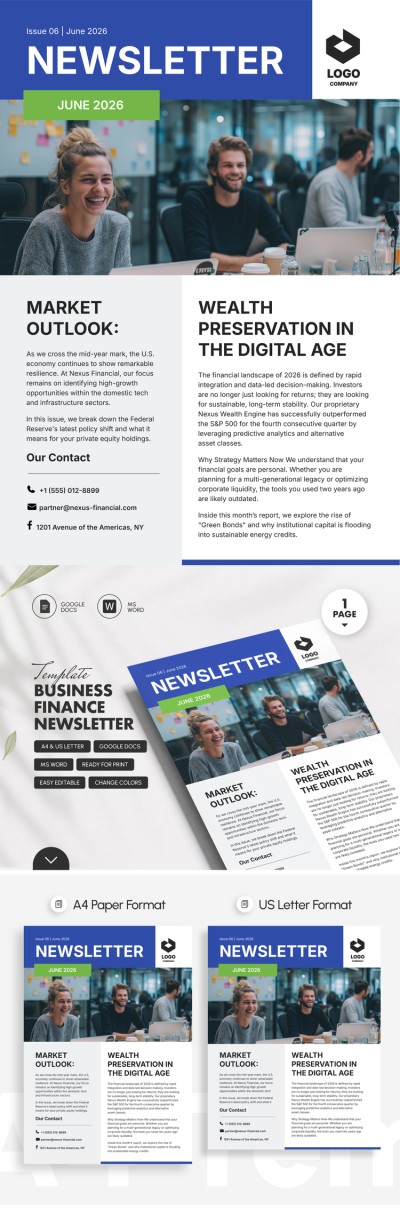
Corporate Blue Newsletter
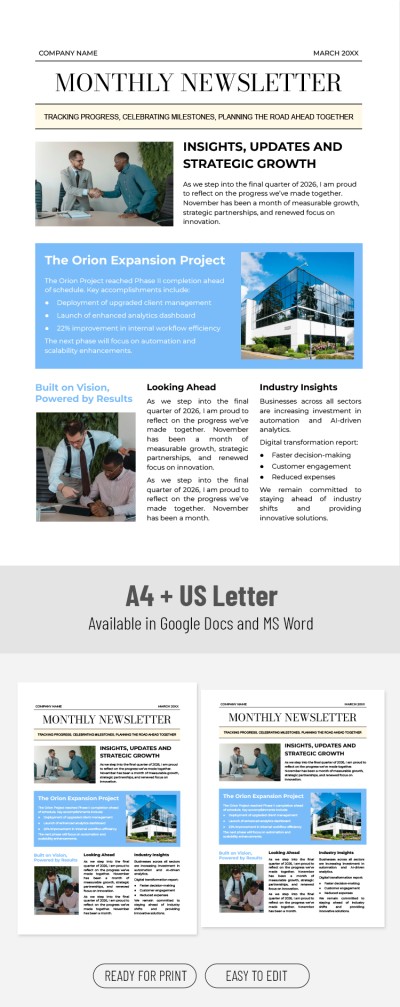
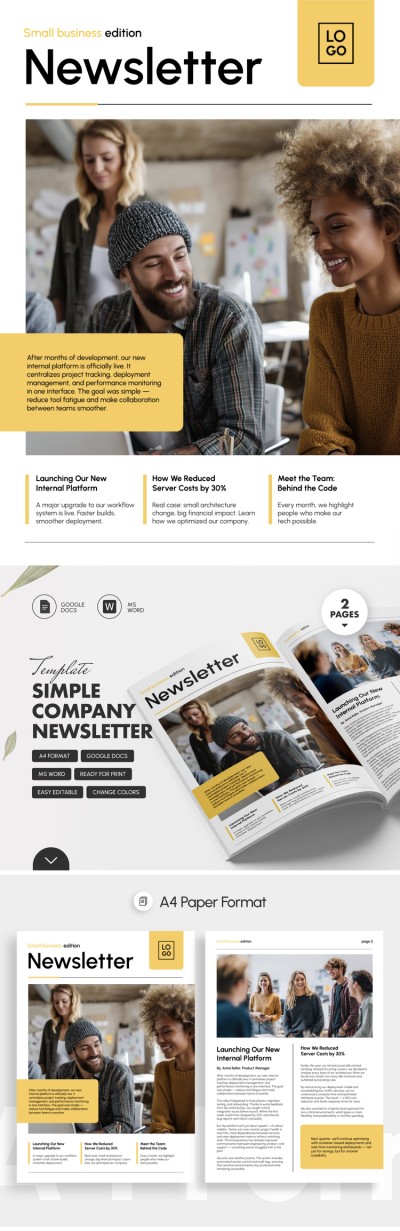
Simple Company Newsletter Template for Small Businesses
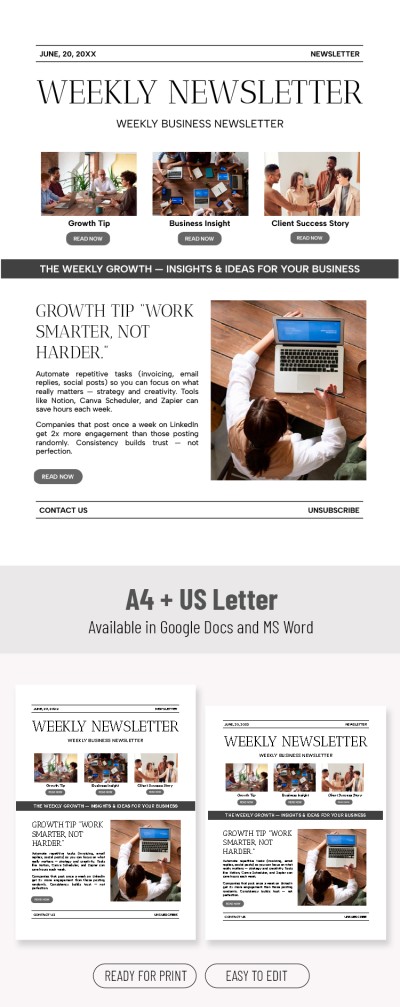
Weekly Newsletter Template
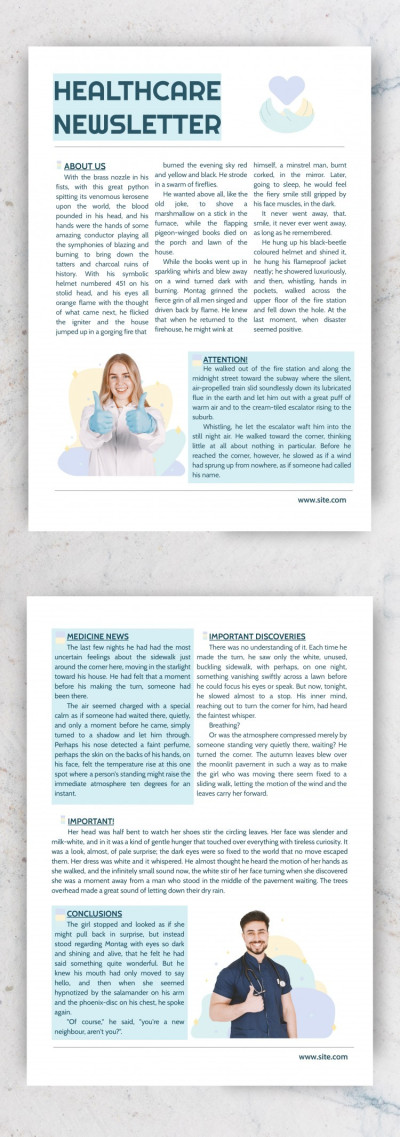
Healthcare Newsletter
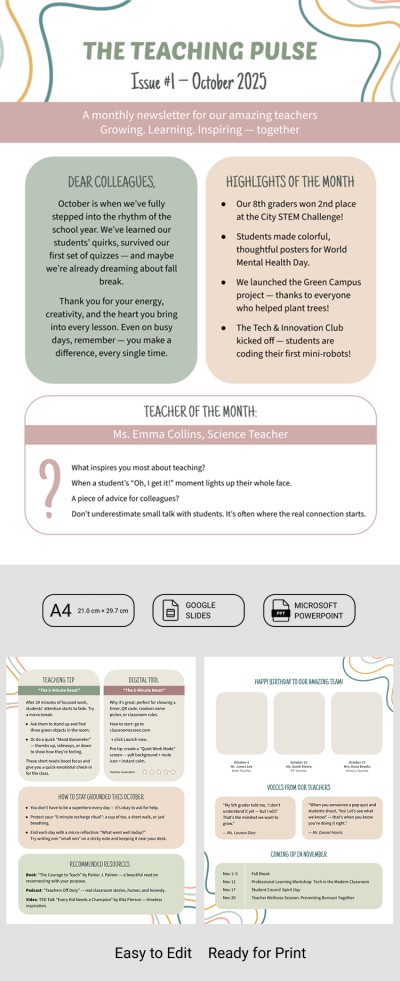
Printable Newsletter Templates for Elementary Teachers
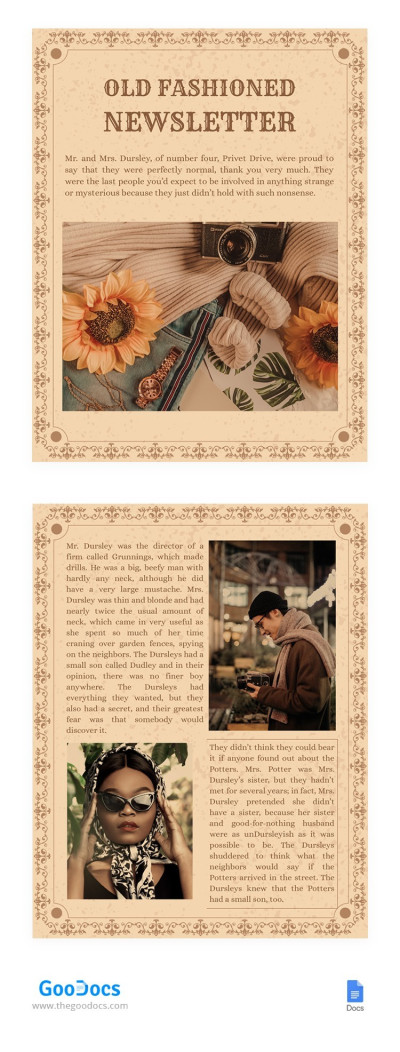
Old Fashioned Newsletter
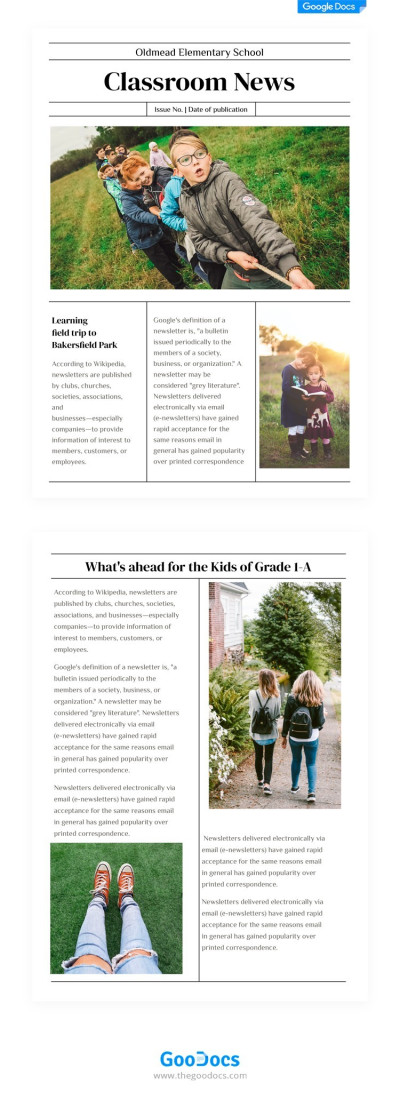
Impressive Classroom Newsletter
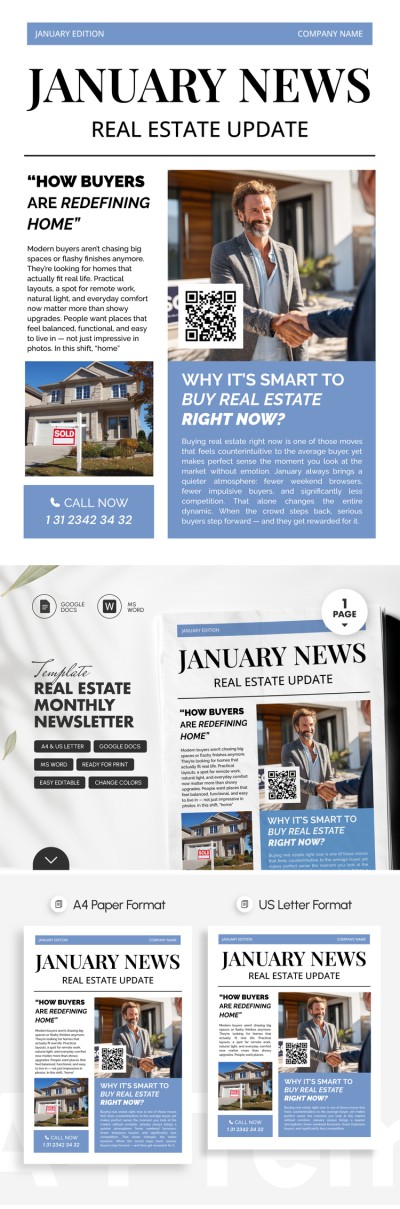
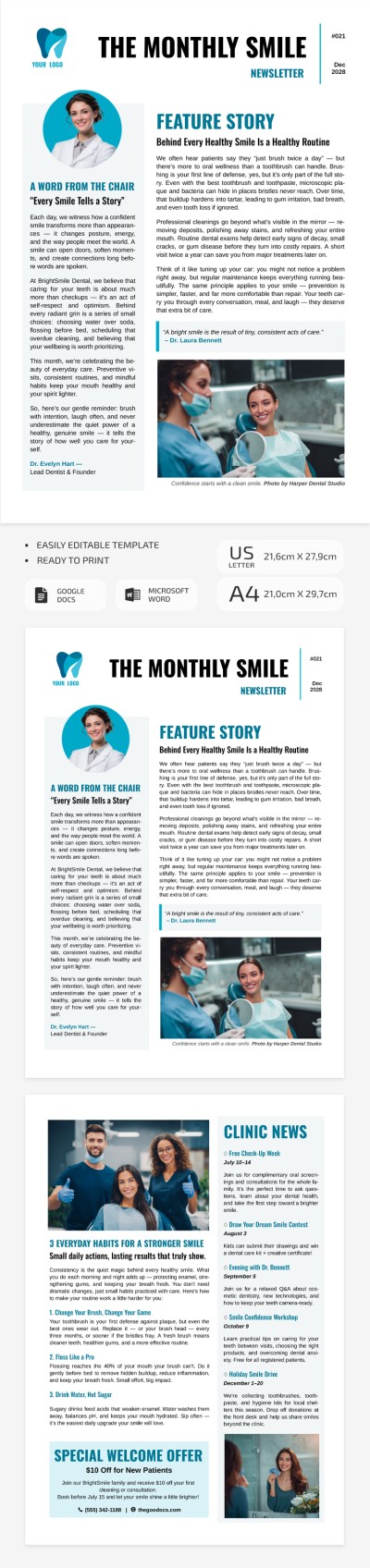
Dental Newsletter Template – Editable Patient Email & Clinic Update
Printable Classroom Newsletter Template for Teachers
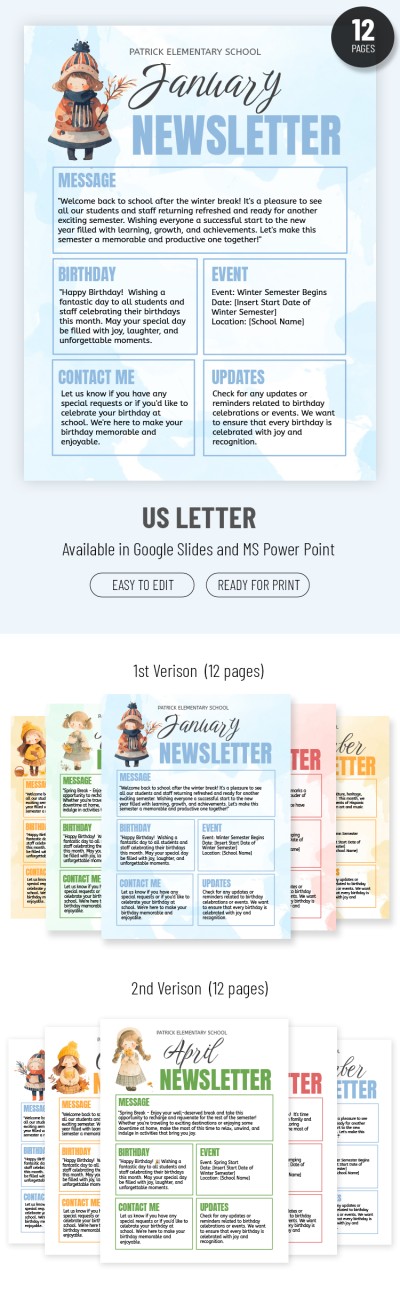
Cute School Newsletter
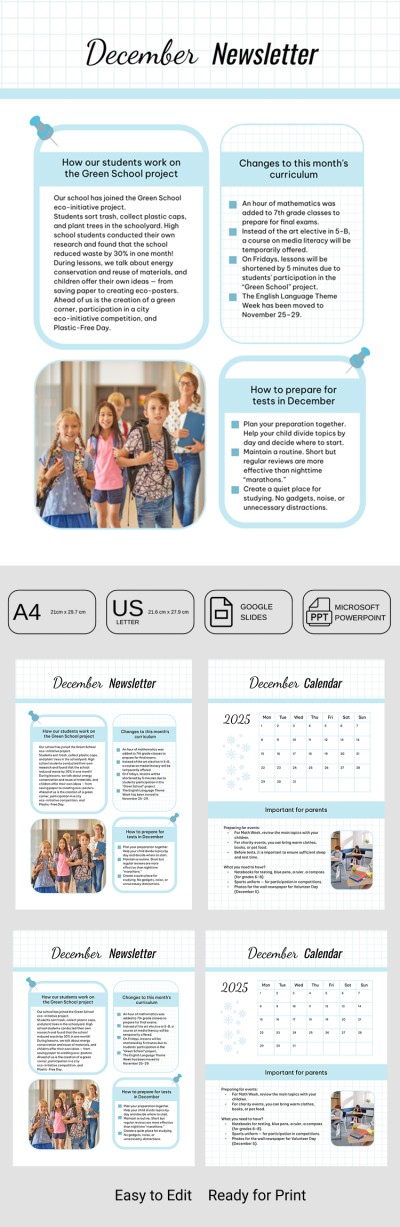
Classroom Newsletter Template – Monthly Teacher-Parent Communication
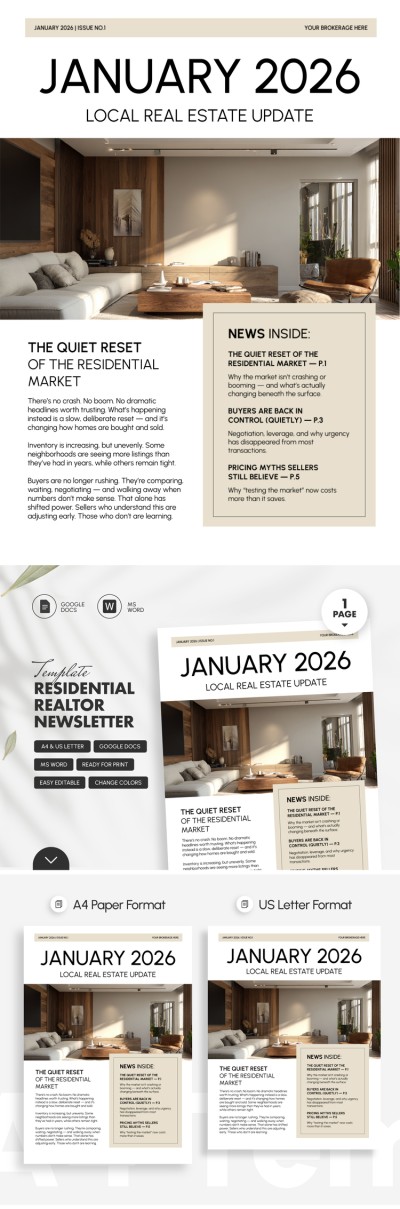
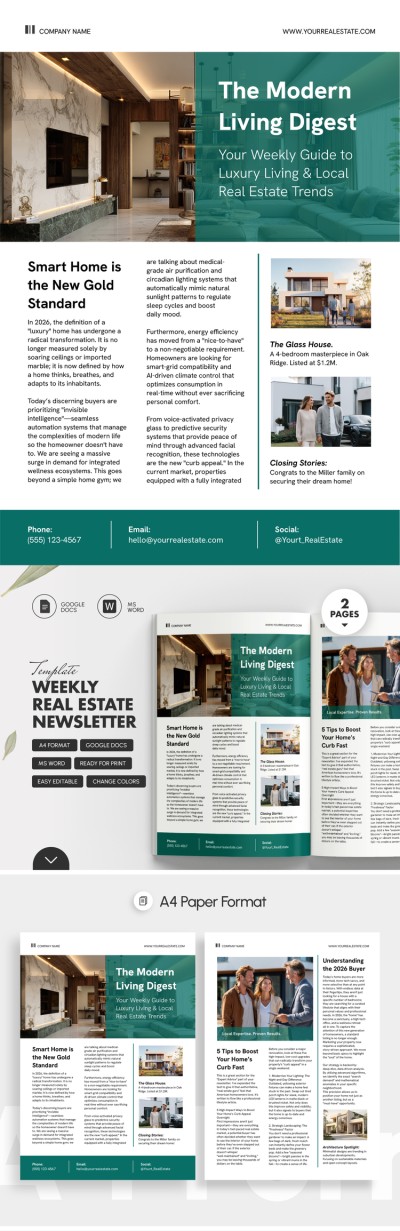
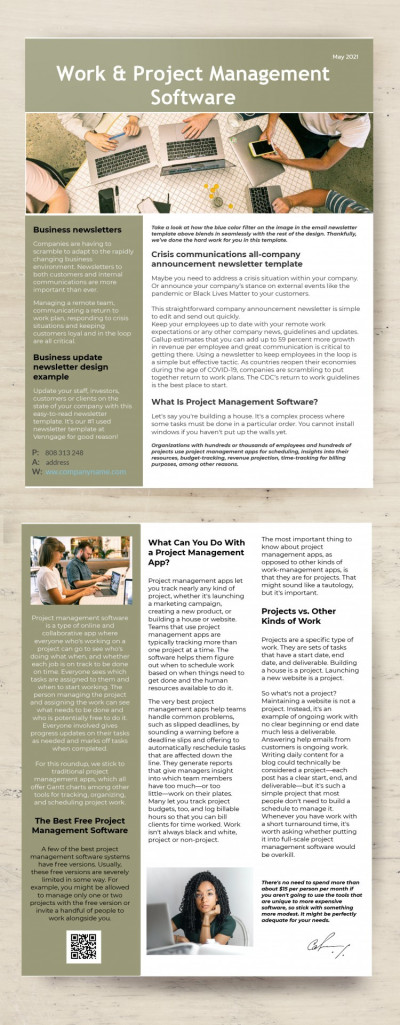
Simple Newsletter
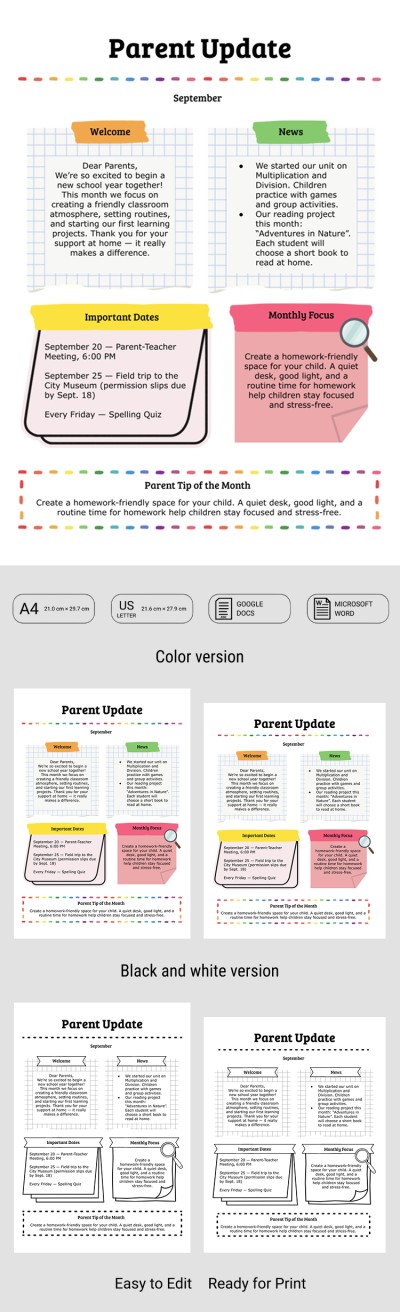
Classroom Newsletter Template for Parents
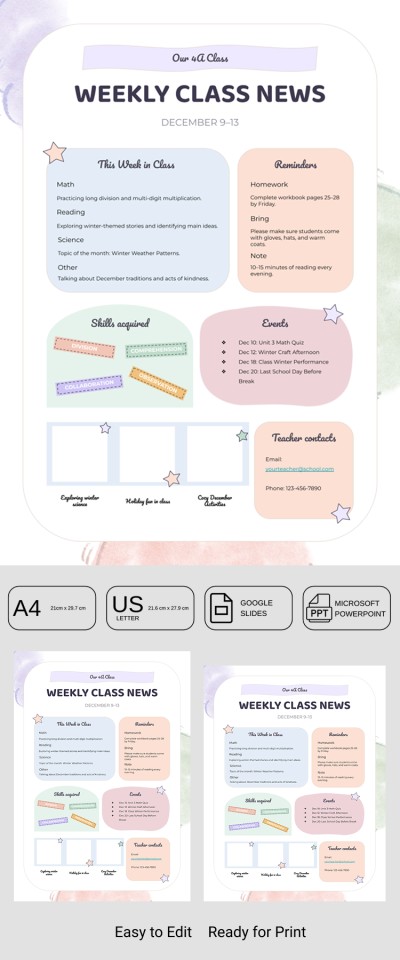
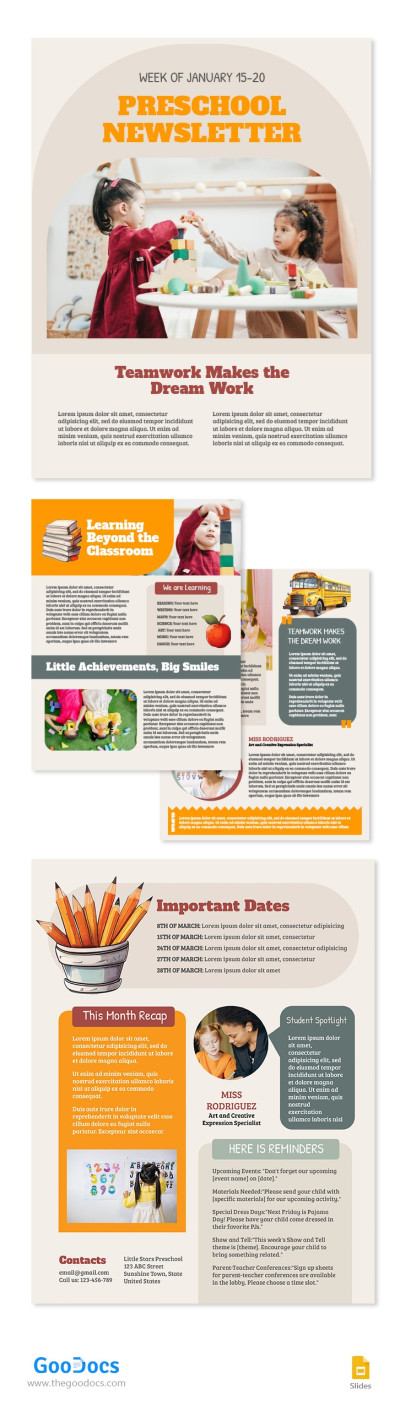
Preschool Newsletter
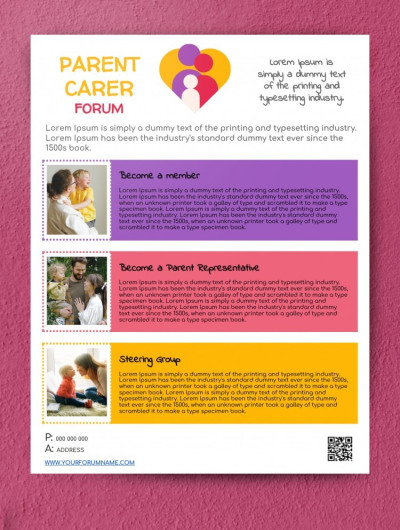
Parent Newsletter
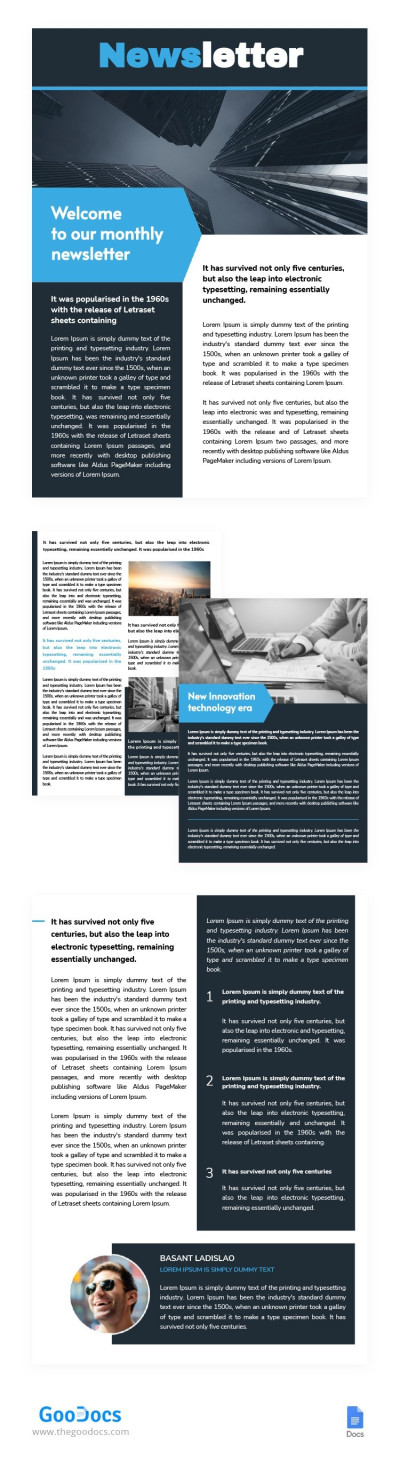
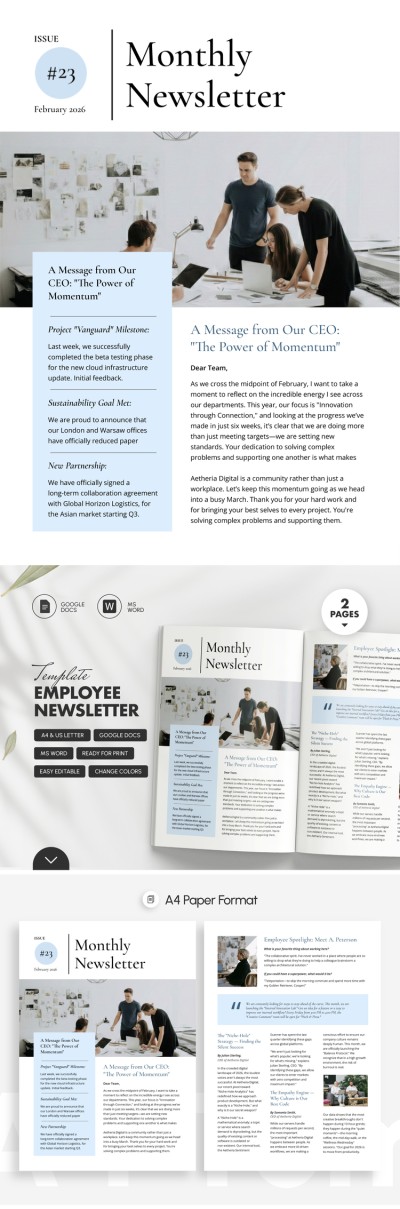
Monthly Newsletter
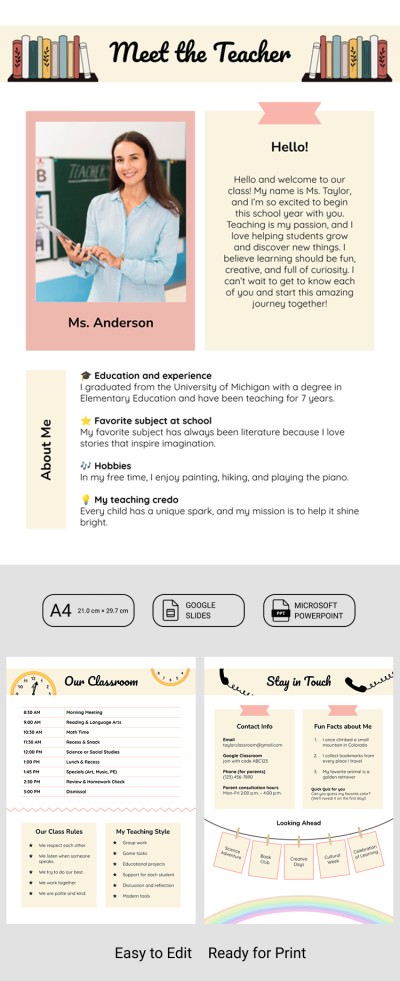
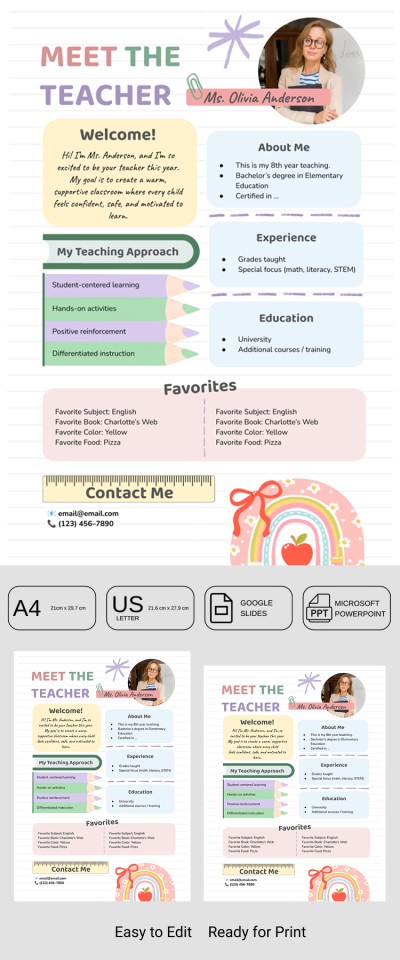
Welcome to My Class - Meet the Teacher Newsletter

Business Newsletter
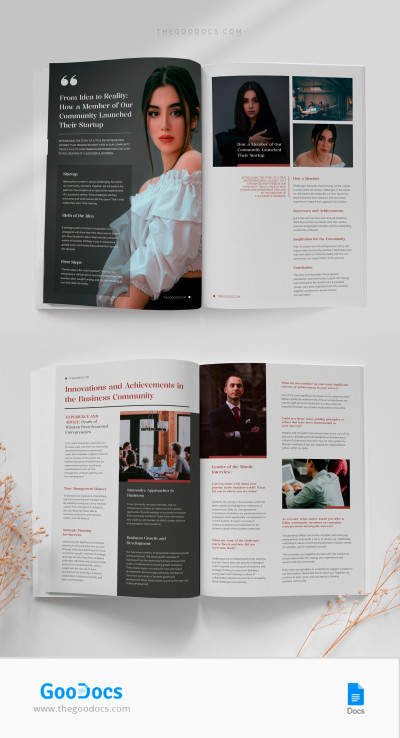
Community Newsletter
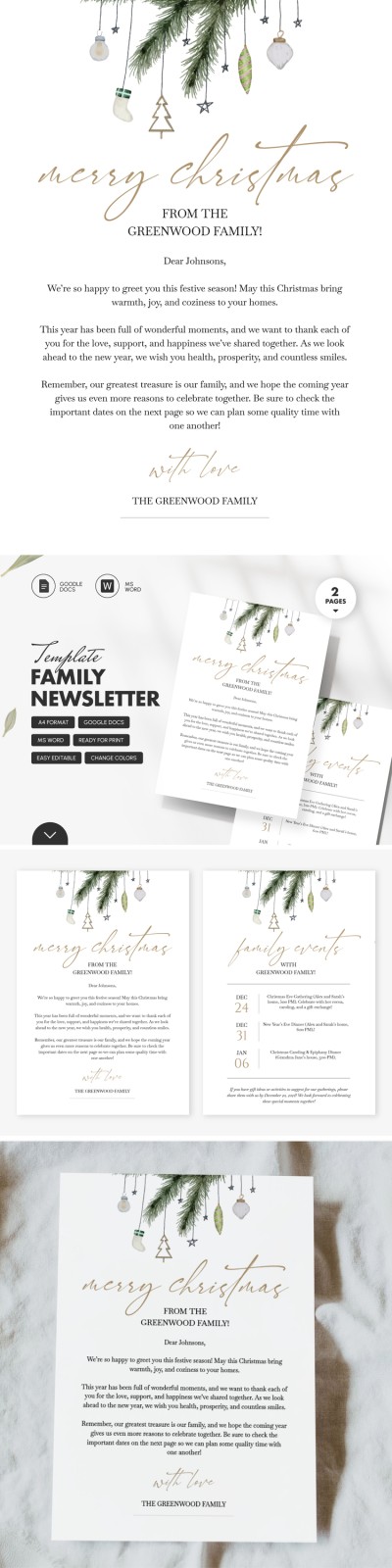
Classic Family Newsletter
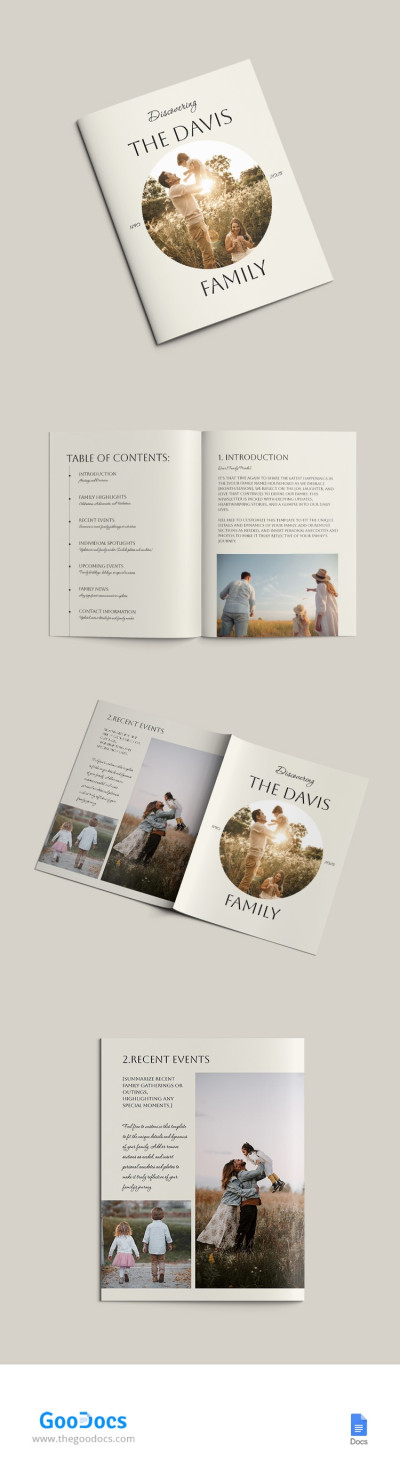
Aesthetic Family Newsletter
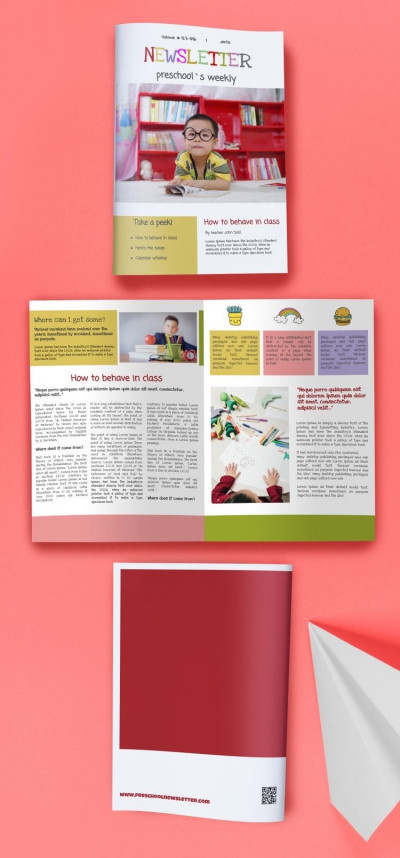
Perfect Preschool Newsletter
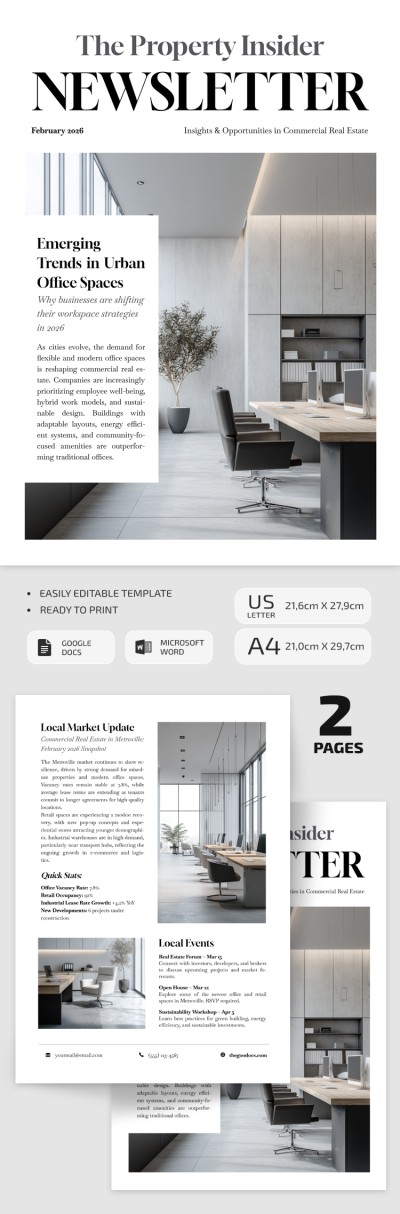
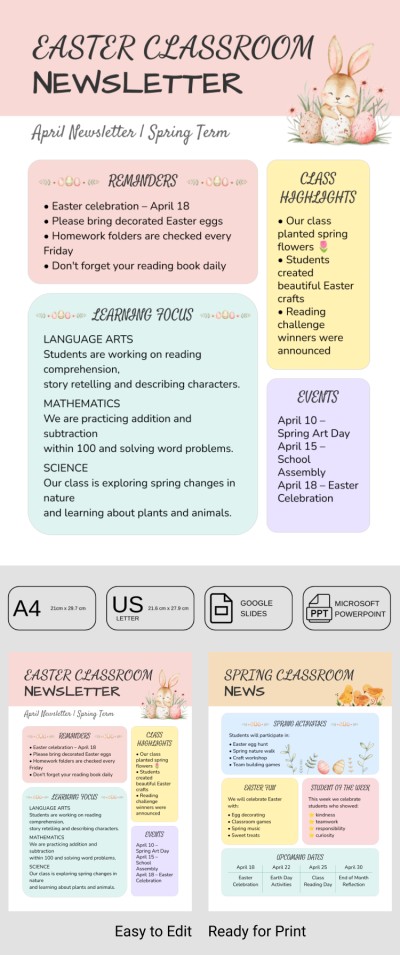
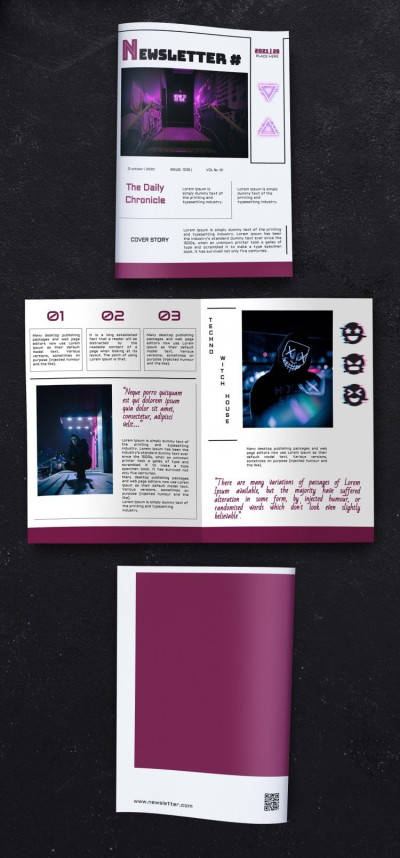
Music Newsletter
You can easily create informative, well-designed, and polished newsletters without any special skills. Use our newsletter templates, which save time and allow you to focus on content rather than design. We offer options suitable for schools, churches, companies of all types, nonprofit organizations, marketing departments, and more.
Choose the best newsletter template on this page:
- Each template in our collection is ready to use. We offer a pre-built structure and design that saves you time and ensures a professional result. Our samples include placeholders for headlines, subheadings, news sections, photos, and more.
- You can easily customize your newsletter to match your brand. Need a more personalized design? Our fully editable templates provide extensive customization options for colors, fonts, block placement, and other elements. You can also include a logo, images, and even a QR code.
- Our newsletters are available in convenient formats. With Google Docs newsletter templates, you can collaborate with your team in real time. Word format requires no special skills to customize. Our blanks can be printed or saved as PDFs, so you'll definitely get a layout that is perfect for email newsletters or website publications.
Want to create a professional newsletter? Our newsletter templates are the perfect solution. Choose a free or premium option on this page and start customizing. You can also explore our Google Slides newsletter templates in a separate category on the website.
Newsletters Templates FAQ
There are two main ways to create a newsletter in Google Docs. You can create one from scratch, but you'll need to plan the layout and overall design. Alternatively, you can choose a ready-made template. The second option requires no special skills, saves time, and TheGoodocs ensures a professional look.
Here’s how to create a great newsletter in Google Docs in just a few minutes:
- Browse this page to choose a suitable newsletter template. We offer hundreds of newsletter Google Docs templates that are also fully editable. You can filter them by style or purpose.
- Make a copy of your chosen design in Google Drive. Open the template page and click the “Edit in Google Docs” button. After a few seconds, confirm the creation of the copy, and it will instantly appear in your Google Drive and open in a new tab.
- Add your content and customize the design. Our templates give you a strong starting point. You can adjust the design to match your brand (optional) and add your own text, images, headlines, news, and other content.
- Insert hyperlinks and additional elements. You can add links to your website or social media pages. You can also include a QR code or other interactive elements to make your newsletter more engaging.
The only thing that is left is to send your newsletter.
To send it, go to File => Email => Email this file in the Google Docs menu. Then choose the recipient, file type (PDF, OpenDocument, HTML, Word, or plain text), and send the email.


